A Temporary Access Pass (TAP) in Microsoft Entra ID is a time-limited passcode that allows users to sign in and register passwordless authentication methods such as passkeys, FIDO2 security keys, Windows Hello for Business, or Microsoft Authenticator without needing an existing MFA method. TAP is commonly used for onboarding new users, account recovery, and passwordless deployments. code length
6. Save the policy. Default lifetime: 1 hour
- Maximum lifetime: 8 hours
- Length: 8 characters
- One-time use: Disabled by default closing the dialog. Registration Process
Enable the Temporary Access Pass policy
A TAP policy defines settings, such as the lifetime of passes created in the tenant, or the users and groups who can use a TAP to sign in.
Before users can sign in with a TAP, you need to enable this method in the Authentication methods policy and choose which users and groups can sign in by using a TAP.
To configure TAP in the Authentication methods policy:
- Sign in to the Microsoft Entra admin center
- Browse to Entra ID > Authentication methods > Policies.
- From the list of available authentication methods, select Temporary Access Pass.
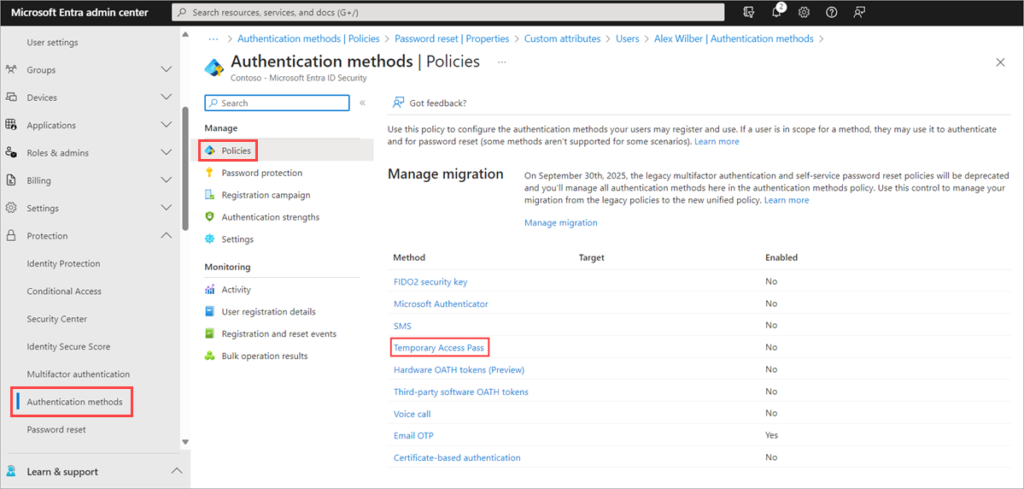
- Select Enable and then select users to include or exclude from the policy.
- (Optional) Select Configure to modify the default Temporary Access Pass settings, such as setting maximum lifetime, or length, and select Update.
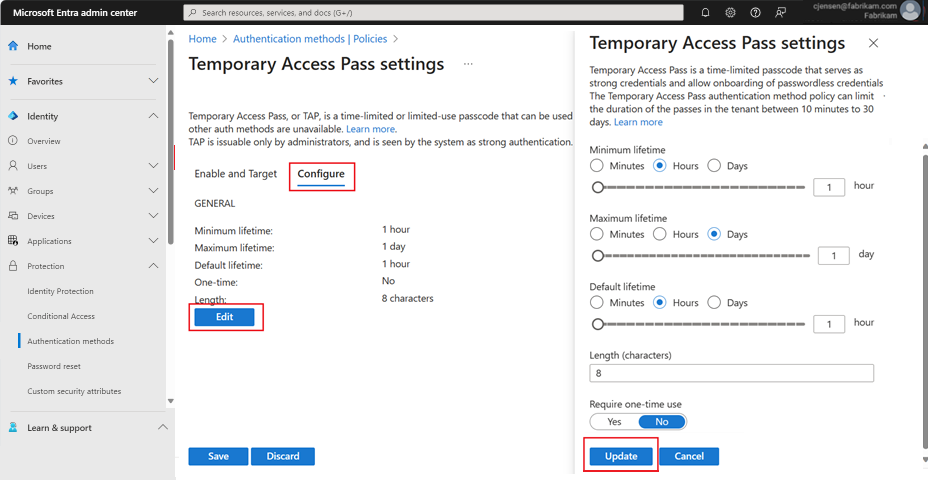
- Select Save to apply the policy.
Create a Temporary Access Pass
After you enable a TAP policy, you can create a TAP policy for users in Microsoft Entra ID.
- Sign in to the Microsoft Entra admin center
- Browse to Entra ID > Users.
- Select the user you would like to create a TAP for.
- Select Authentication methods and select Add authentication method.
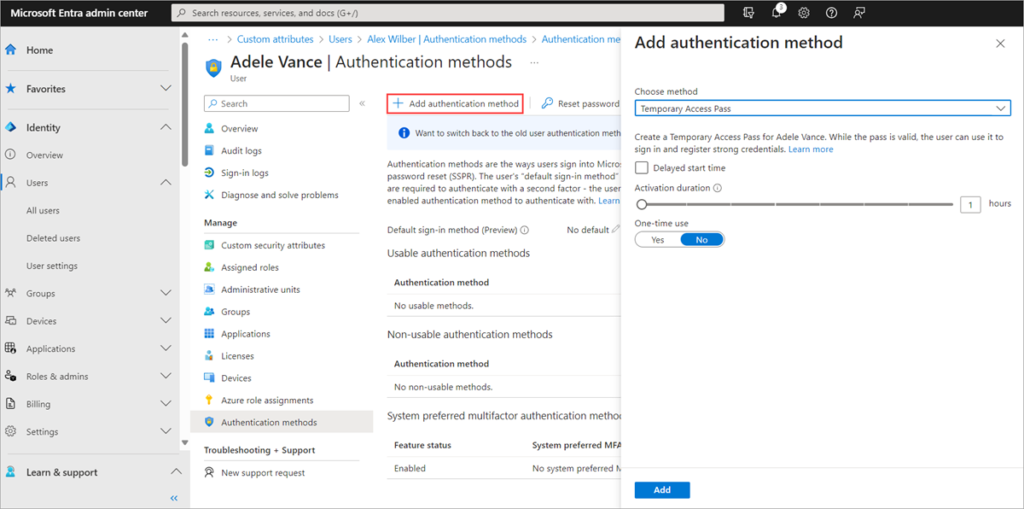
- Select Temporary Access Pass.
- Define a custom activation time or duration and select Add.
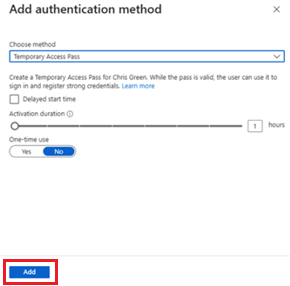
- Once added, the details of the TAP are shown.
- Select OK when you’re done.
The following commands show how to create and get a TAP using PowerShell.
# Create a Temporary Access Pass for a user
$properties = @{}
$properties.isUsableOnce = $True
$properties.startDateTime = '2022-05-23 06:00:00'
$propertiesJSON = $properties | ConvertTo-Json

New-MgUserAuthenticationTemporaryAccessPassMethod -UserId user2@contoso.com -BodyParameter $propertiesJSON

Id                                   CreatedDateTime       IsUsable IsUsableOnce LifetimeInMinutes MethodUsabilityReason StartDateTime         TemporaryAccessPass
--                                   ---------------       -------- ------------ ----------------- --------------------- -------------         -------------------
00aa00aa-bb11-cc22-dd33-44ee44ee44ee 5/22/2022 11:19:17 PM False    True         60                NotYetValid           23/05/2022 6:00:00 AM TAPRocks!

# Get a user's Temporary Access Pass
Get-MgUserAuthenticationTemporaryAccessPassMethod -UserId user3@contoso.com

Id                                   CreatedDateTime       IsUsable IsUsableOnce LifetimeInMinutes MethodUsabilityReason StartDateTime         TemporaryAccessPass
--                                   ---------------       -------- ------------ ----------------- --------------------- -------------         -------------------
00aa00aa-bb11-cc22-dd33-44ee44ee44ee 5/22/2022 11:19:17 PM False    True         60                NotYetValid           23/05/2022 6:00:00 AM